

Configure your Auth0 Vault Connection
Learn how to configure a Vault Connection for your Auth0 Flow Actions at Auth0 Vault Connection.Create user
Create a user.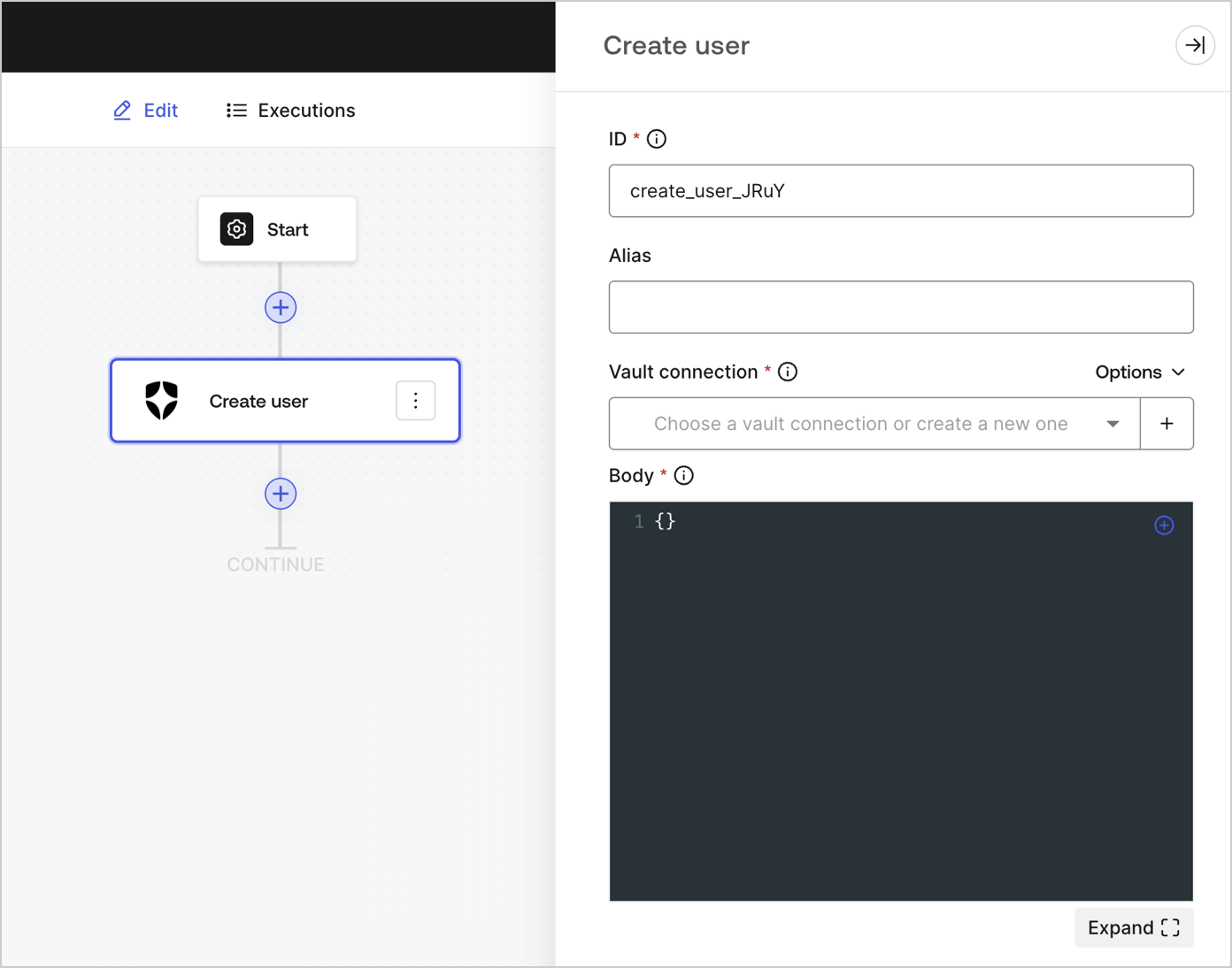
Input settings
| Parameter | Description |
|---|---|
| Body | The payload of Auth0 user properties to add. To learn more, read Create a user API documentation. |
Output object
Review Create a user for expected response and status code.Get user
Retrieve user details.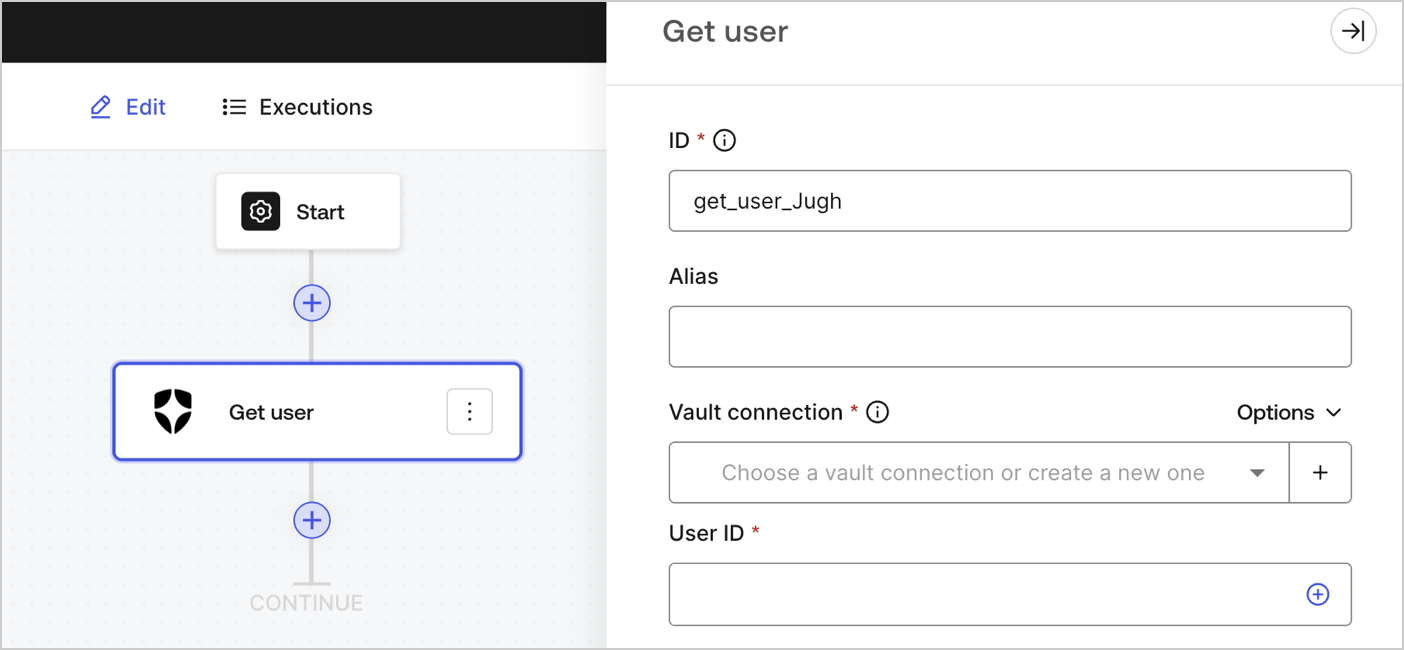
Input settings
| Parameter | Description |
|---|---|
| User ID | ID of the user to retrieve. To learn more, read Get a user API documentation. |
Output object
Review Get a user for expected response and status code.Update user
Update a user.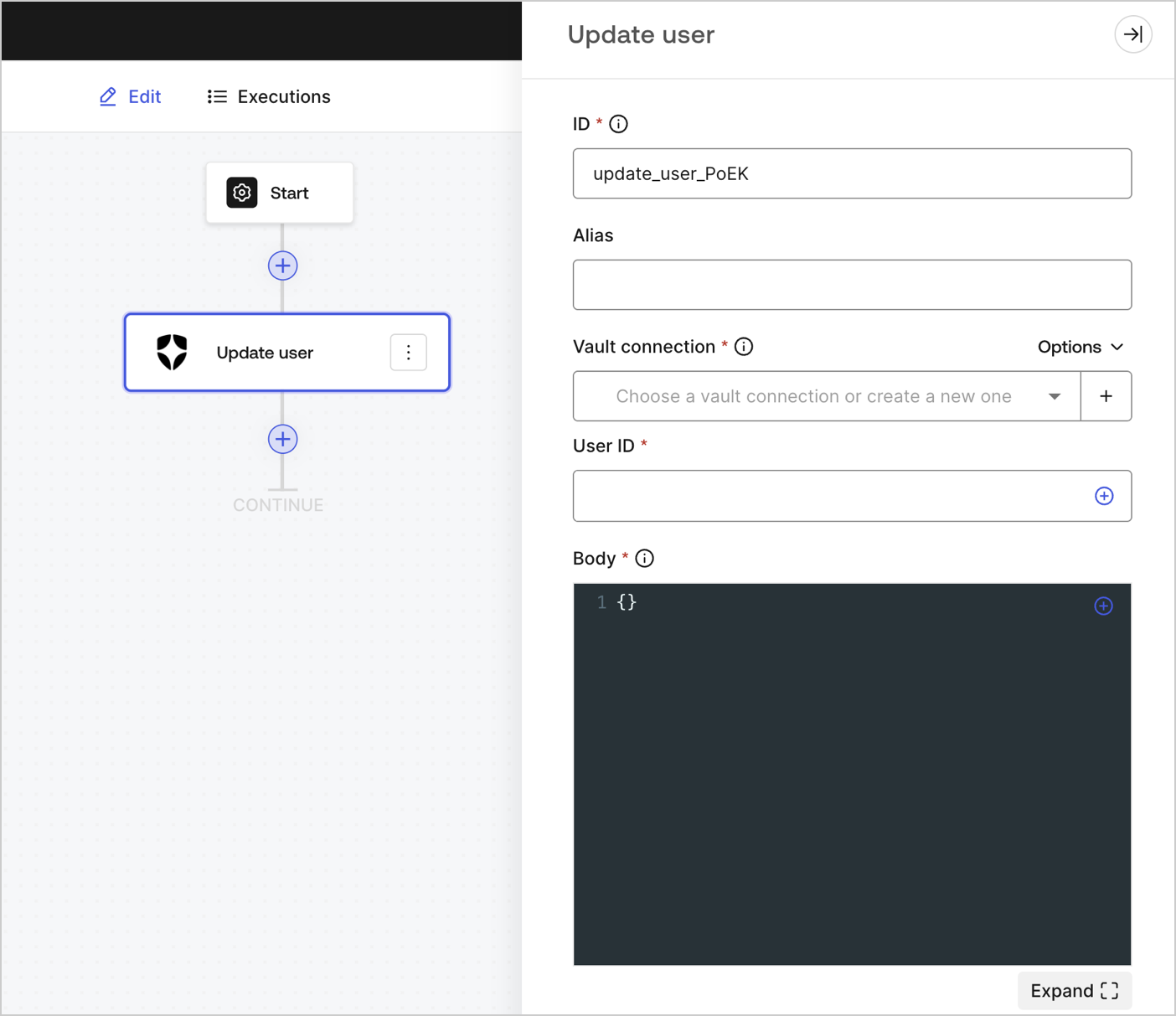
Input settings
| Parameter | Description |
|---|---|
| User ID | ID of the user to update. |
| Body | The payload of Auth0 user properties to update. To learn more, read Update a user API documentation. |
Output object
You can find the expected response and status codes at Update a user API documentation.Custom API request
Send a custom API request to Auth0 API endpoints.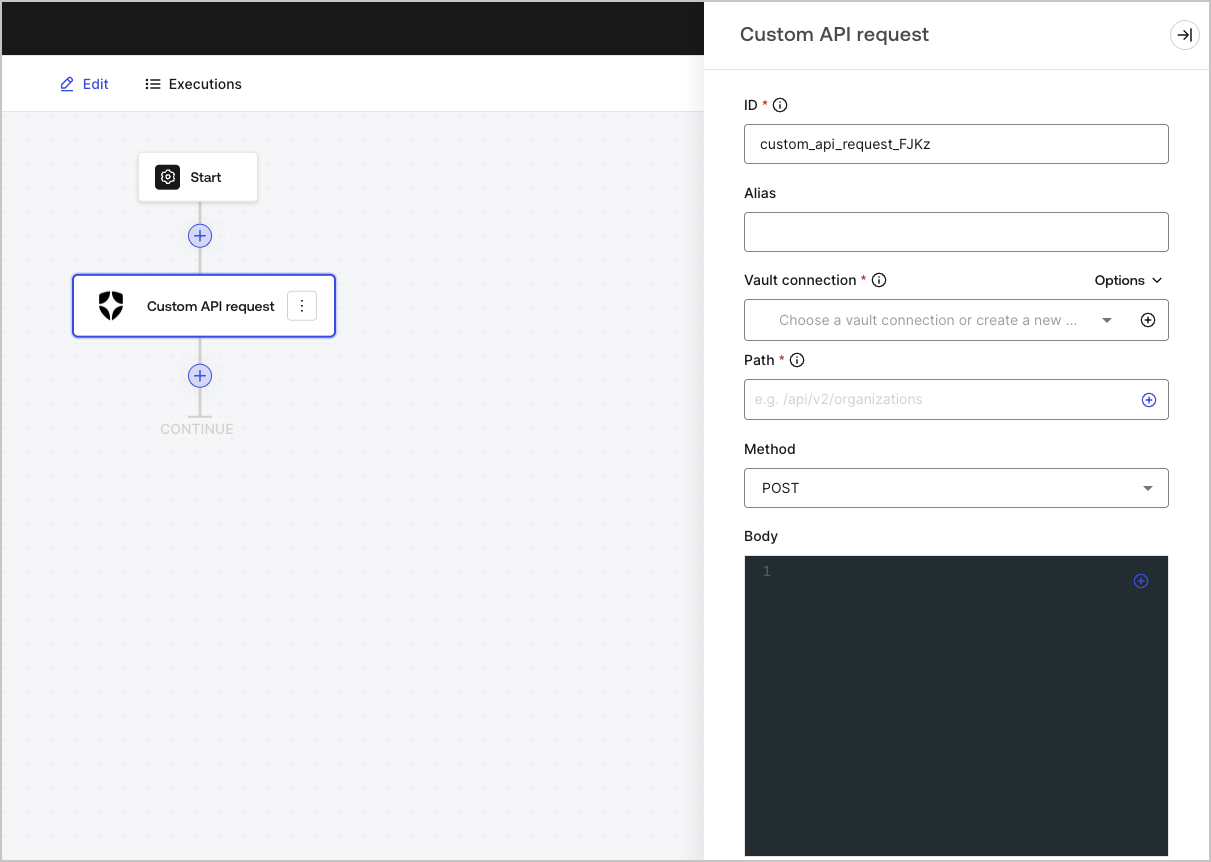
Input settings
| Parameter | Description |
|---|---|
| Path | The API endpoint absolute pathname.
( Example: /api/v2/organizations )
Note: Some endpoints, for example: Get a user , require URI encoded parameters when not using alphanumeric characters, such as: -, ., _, or ~, characters ).
To do this, you can use the encodeURIComponent function: {{ functions.encodeURIComponent(context.user.user_id) }} |
| Method | Available HTTP methods include:
|
| Body | The body of the request. |
| Headers | The headers of the request. |
| URL Params | The URL parameters. These parameters are automatically URL-encoded. |
Output object
Review Auth0 Management API for expected responses and status codes.Notifications
Send email
Send a custom email using your configured email provider.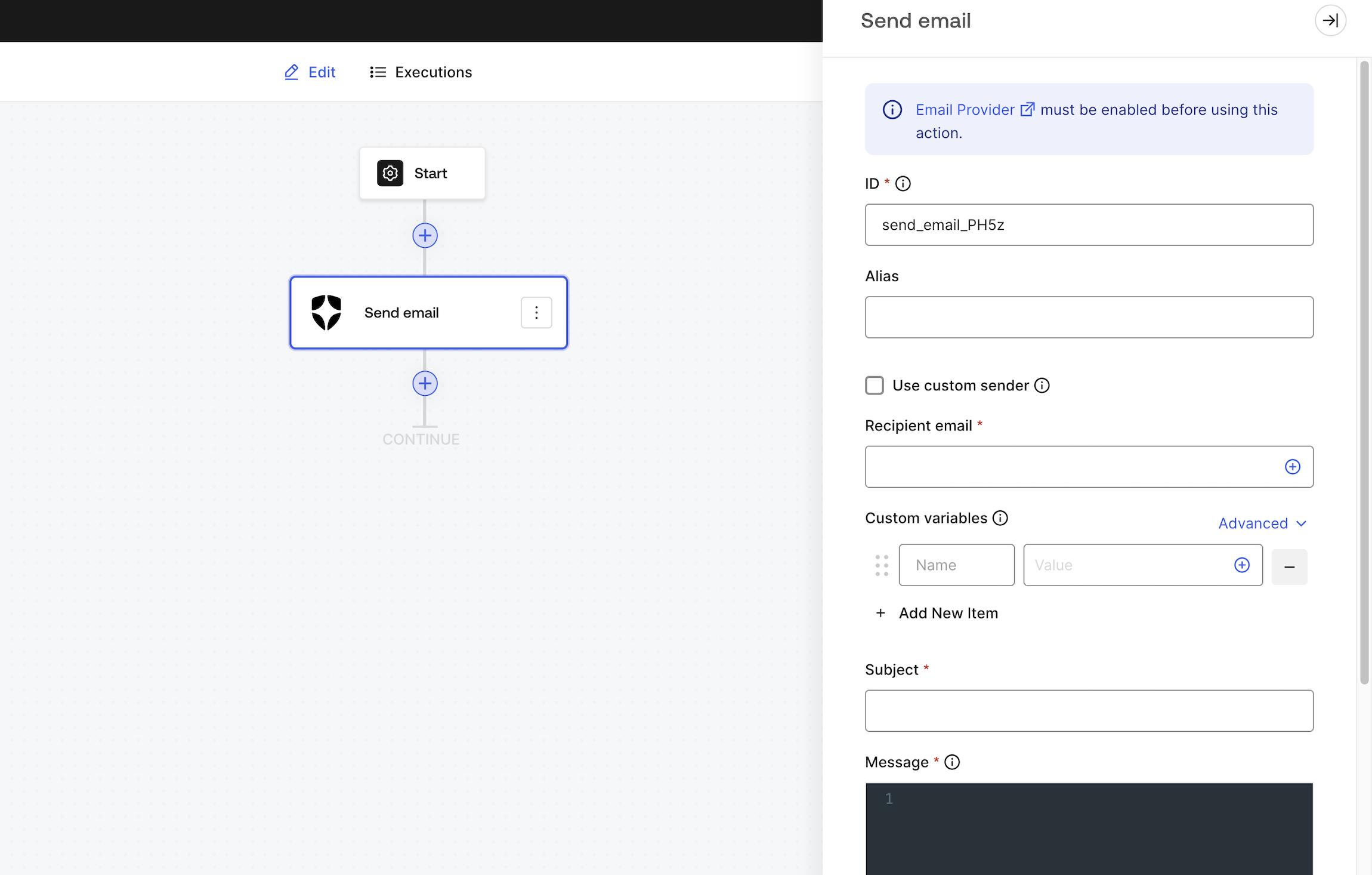
Input settings
| Parameter | Description |
|---|---|
| Use custom sender email | By default, we will use the sender email you have configured in your customized email provider settings. Enable this option if you want to use a different sender email or name. |
| Recipient email | The recipient’s email. |
| Custom variables | Add custom variables to be inserted in your email template. Once configured, you can reference them using {{custom_vars.your_variable_key}}. |
| Subject | The email subject. Supports custom variables and Liquid syntax. |
| Message | The email message is in HTML format, uses Liquid syntax, and supports custom variables. |
Subject and Message can use a combination of Liquid syntax with common variables or custom variables using
{{custom_vars.your_variable_key}} syntax.Use custom variables to pass information between Forms / Flows context and Subject and Message content.Output object
| Property | Type | Description |
|---|---|---|
| success | Boolean | Indicates if the email was successfully queued to be sent, regardless of whether the delivery failed or not. |
Output object example
Send SMS
Send a custom SMS using your configured phone provider.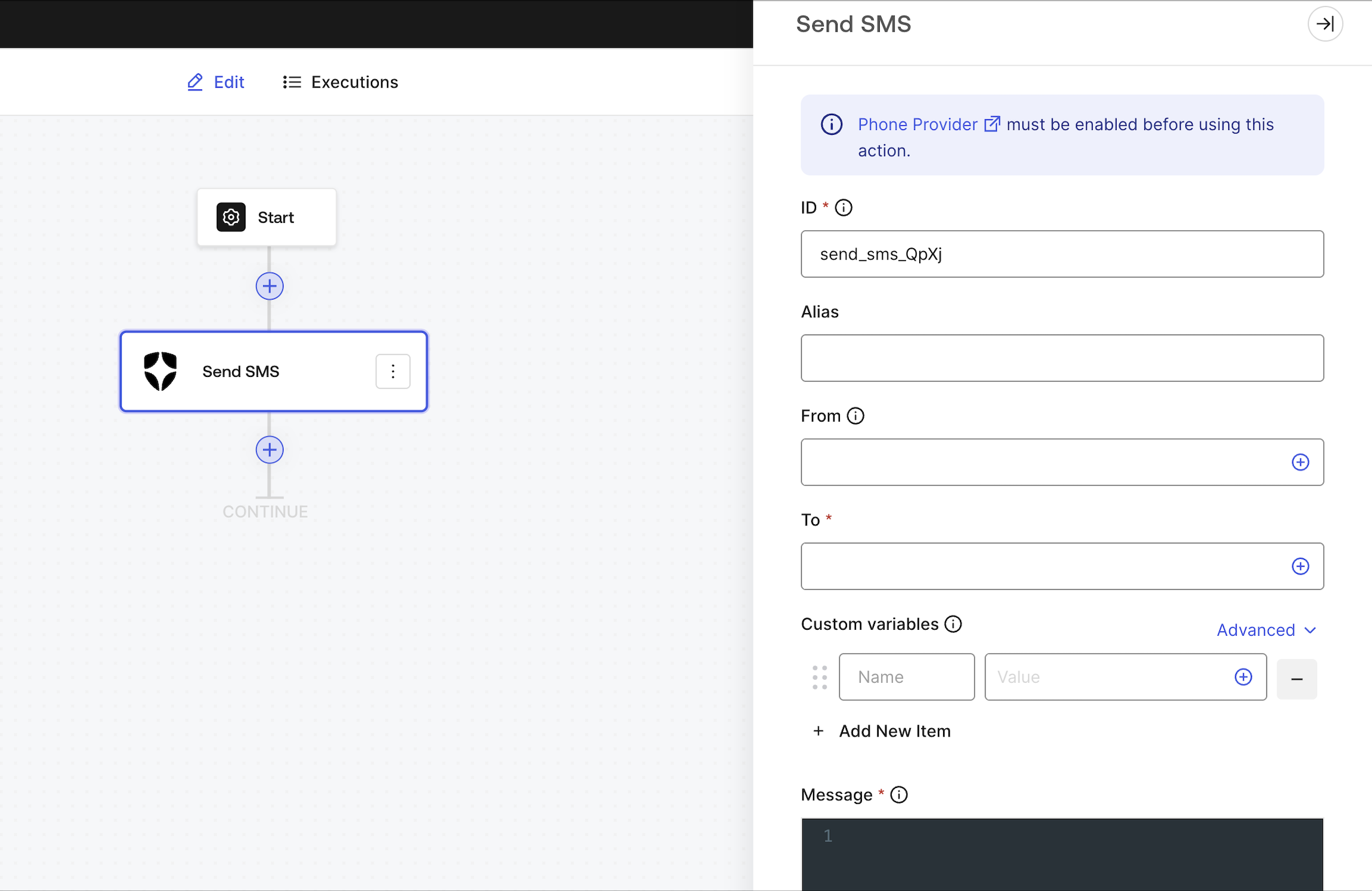
Input settings
| Parameter | Description |
|---|---|
| From | By default, we will use the sender phone number you have configured in your customized phone provider settings. Input a custom value if you want to use a different sender phone number. |
| To | The recipient’s phone number. |
| Custom variables | Add custom variables to be inserted in your phone template. Once configured, you can reference them using {{custom_vars.your_variable_key}}. |
| Message | The phone message uses Liquid syntax and supports custom variables. |
Message can use a combination of Liquid syntax with common variables or custom variables using
{{custom_vars.your_variable_key}} syntax.Use custom variables to pass information between Forms / Flows context and Message content.Output object
| Property | Type | Description |
|---|---|---|
| success | Boolean | Indicates if the phone message was successfully queued to be sent, regardless of whether the delivery failed or not. |
Output object example
Make call
Send a custom voice message using your configured phone provider.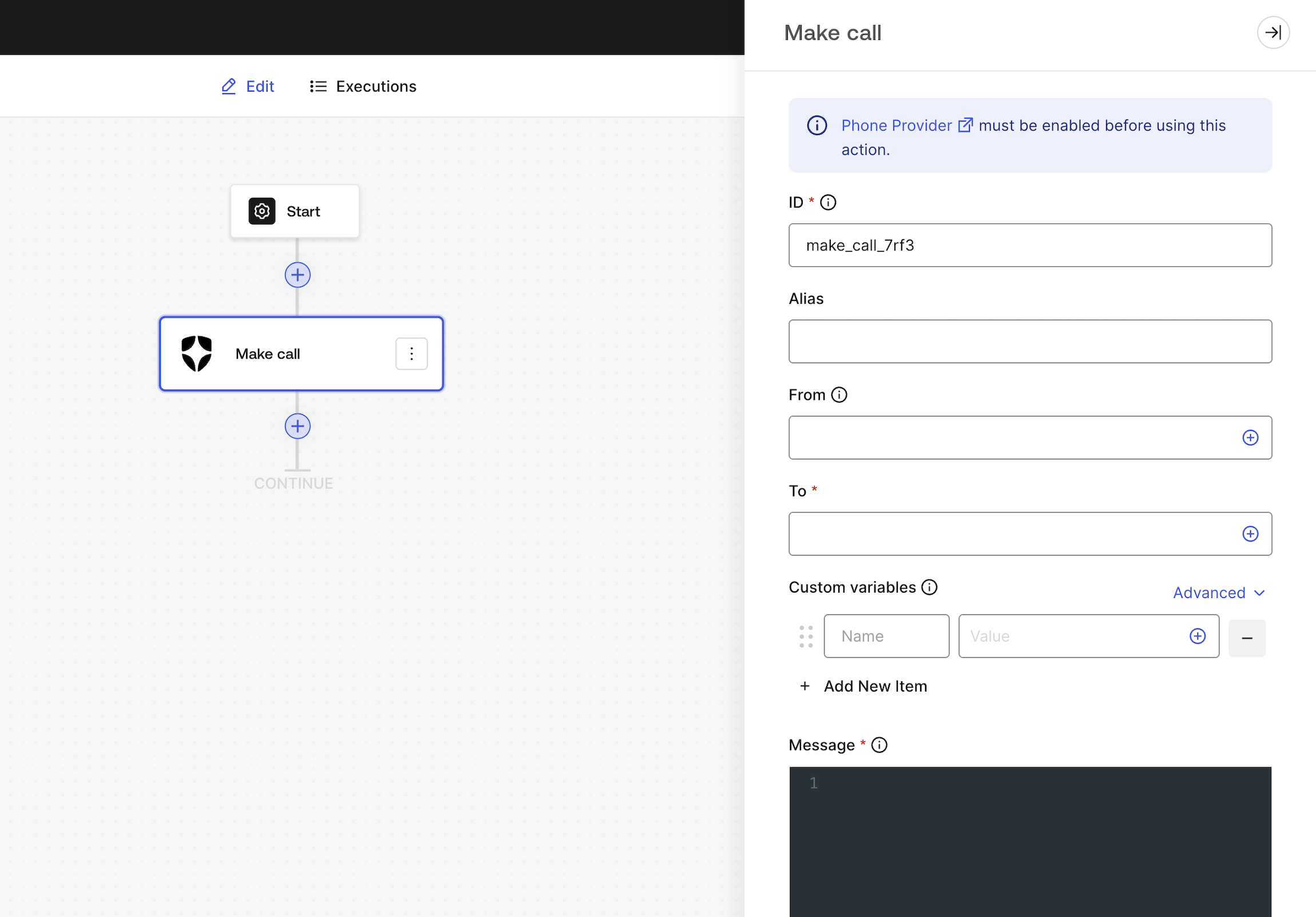
Input settings
| Parameter | Description |
|---|---|
| From | By default, we will use the sender phone number you have configured in your customized phone provider settings. Input a custom value if you want to use a different sender phone number. |
| To | The recipient’s phone number. |
| Custom variables | Add custom variables to be inserted in your phone template. Once configured, you can reference them using {{custom_vars.your_variable_key}}. |
| Message | The phone message uses Liquid syntax and supports custom variables. |
Message can use a combination of Liquid syntax with common variables or custom variables using
{{custom_vars.your_variable_key}} syntax.Use custom variables to pass information between Forms / Flows context and Message content.Output object
| Property | Type | Description |
|---|---|---|
| success | Boolean | Indicates if the phone message was successfully queued to be sent, regardless of whether the delivery failed or not. |